
Manually Set the Recorder's Time Zone
About this task
When you Pair the Recorder with the Song Meter Configurator App, the app will prompt you to update the Song Meter Mini 2's time zone setting if it does not match your mobile device's time zone.
If you instead want to manually set the recorder's time zone either by directly configuring a paired recorder or by configuring a time zone in a configuration file, you can do so in the Location & Time Zone Screen.
Procedure
-
Open the Configuration Editor.
-
To configure a paired recorder directly, see Configure a Paired Recorder Directly.
-
To configure a saved configuration file, see Edit a Saved Configuration File.
-
- Tap Location & time zone to open the Location & Time Zone Screen.
-
Tap Select time zone.
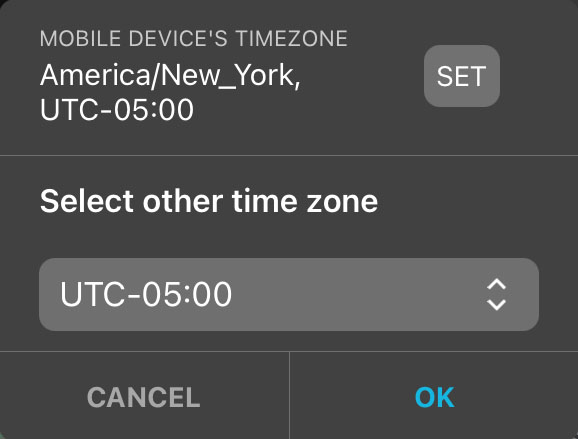
A pop-up window appears with a display of your MOBILE DEVICE'S TIMEZONE and a dropdown menu for selecting a manual time zone.
-
Select a time zone using either of these methods:
-
Tap SET to update the saved time zone setting to match your mobile device's current time zone.
-
Tap the dropdown menu labeled Select other time zone to manually set the time zone.
Tap OK to confirm the time zone change and dismiss the pop-up window.
-