
Status Screen
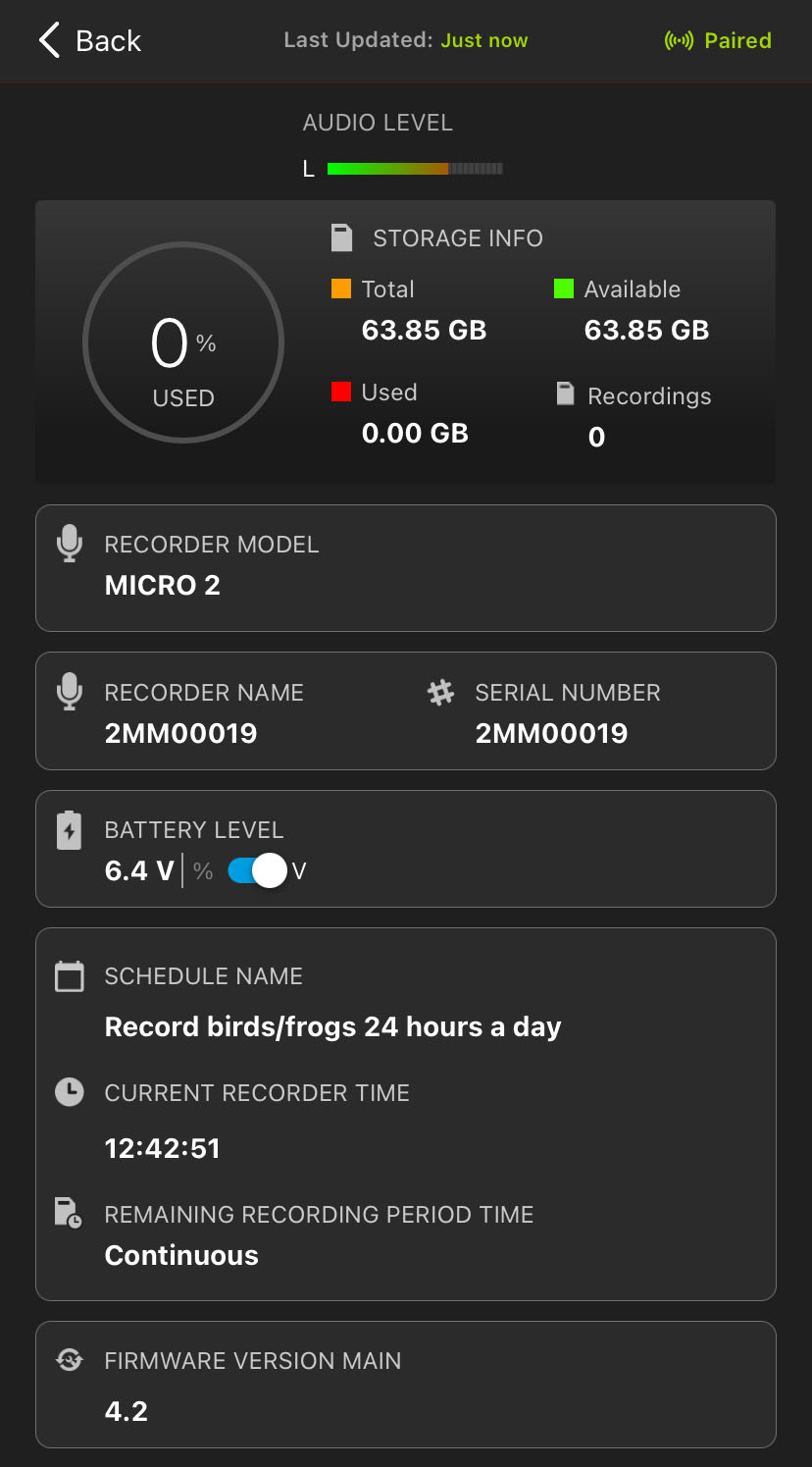
The Status screen displays all of the status information broadcast from a Song Meter Micro 2 and received by the Song Meter Configurator app. It shows information about the recorder's SD card, batteries, schedule settings, microphones, and firmware version.
To access the Status screen for a recorder, navigate to the Recorders Screen, then tap the Status icon listed to the right of the recorder's name.
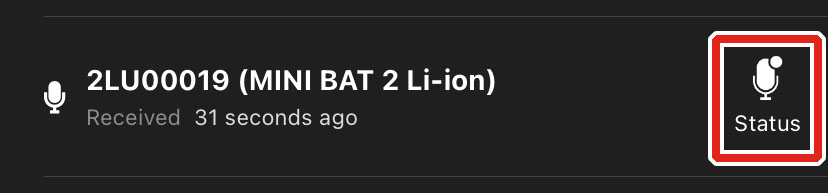
When a Song Meter Micro 2 is within Bluetooth range and either broadcasting Bluetooth beacons or paired with the app, its status will update in the app once every few seconds. The last-received status information for a recorder is retained by the app when the app is closed, the mobile device or recorder are turned off, or the recorder moves out of Bluetooth range.
While a Song Meter Micro 2 is paired with the Song Meter Configurator app on one mobile device, it will not broadcast Bluetooth beacons for other mobile devices to receive. Only the paired mobile device will receive real-time status updates.
The Status screen displays the following information and interface elements, listed in order from top to bottom, left to right:
Top-Most Info Bar

- < Status (back icon)
-
Tap this icon to exit the Status screen and return to the Recorders screen.
- Last Updated
-
This text indicates when the Song Meter Configurator app last received status information from the selected recorder.
- Paired/Unpaired
-
This text indicates whether the recorder is paired with the app or not.
New Firmware Alert
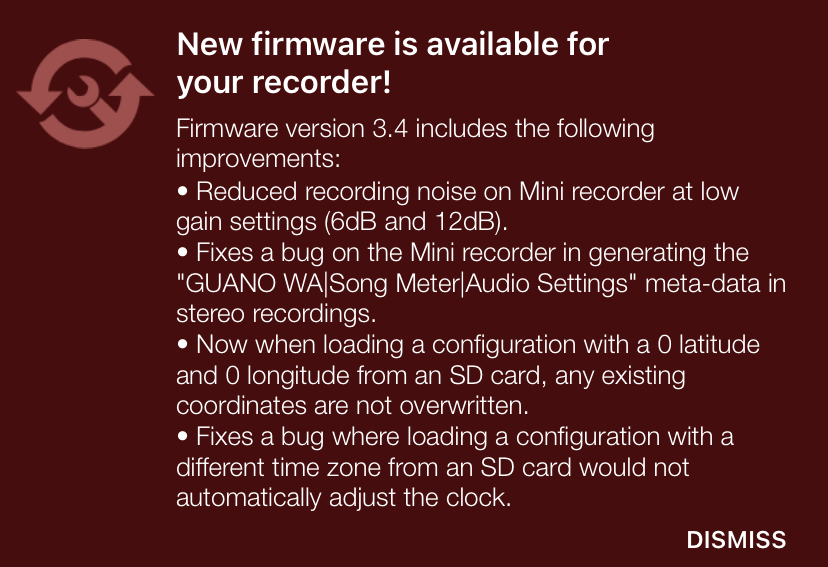
If the app detects that the recorder is running an older firmware version than the latest available, a message will be displayed below the top-most info bar. This message includes a link to instructions on updating the firmware as well as release notes for the latest available firmware version.
To close this alert, tap DISMISS.
Microphone Level Panel
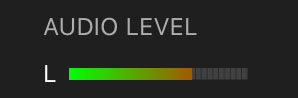
This panel is only visible when the recorder is paired with the app. It displays a real-time representation of the microphone's incoming signal level.
- AUDIO LEVEL
-
This meter displays a real-time representation of the volume of sound being picked up by the Song Meter Micro 2's microphone.
The meter will only be responsive if the recorder is currently running a recording period.
Storage Info Panel
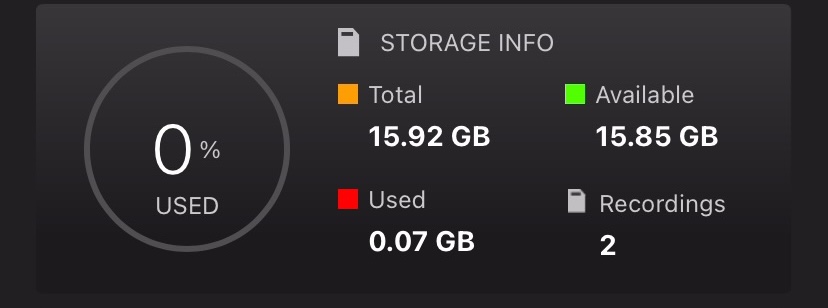
- Error Message Readout
-
If there is a problem with the SD card, an error message will be displayed underneath the STORAGE INFO text. See SD Card Error Messages for descriptions of common error messages.
- Storage Percentage Used
-
This circular graph and percentage text indicate what proportion of the available space on the SD Card has been used.
- Total
-
In gigabytes, shows how much total space, used and available, is present on the SD card.
- Available
-
In gigabytes, shows how much space is unused and available for recording storage on the SD card.
- Used
-
In gigabytes, shows how much space on the SD card is occupied by recordings or other data.1
- Recordings
-
Number of separate recording files saved to the SD card since the recorder was last powered on. This number will reset to zero when the recorder powers off or when the SD card is reformatted.
Other Info Panels
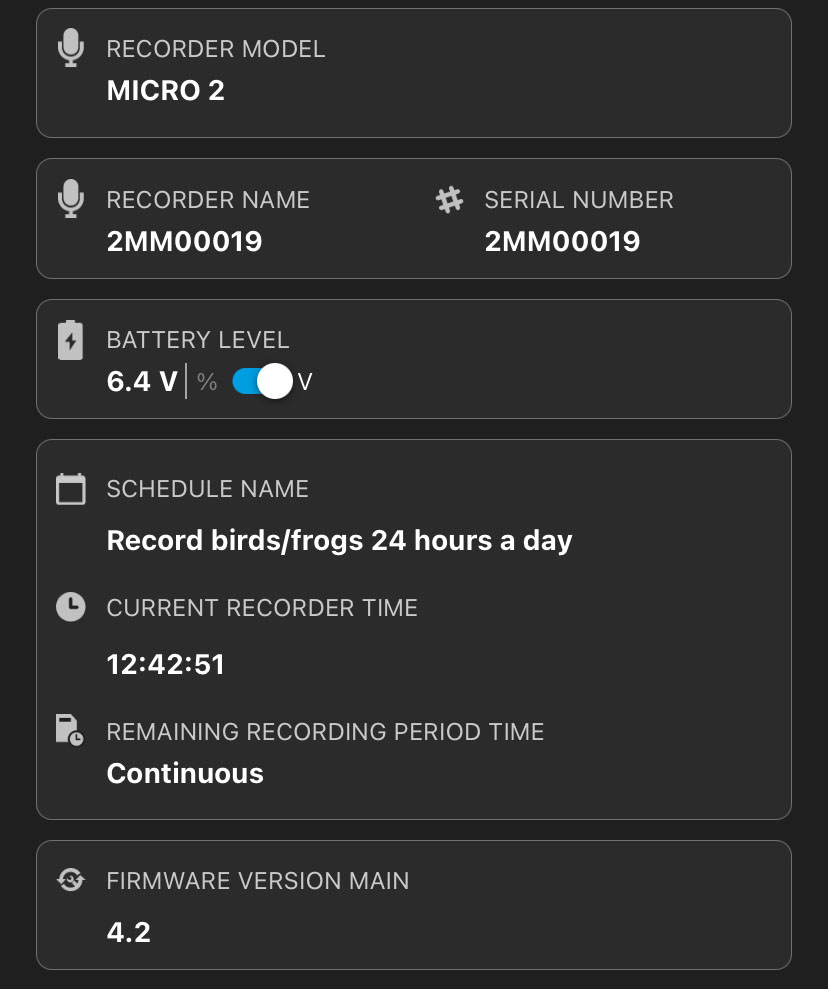
- RECORDER MODEL
-
Displays the model name of the recorder.
- RECORDER NAME
-
Displays the name of the recorder. By default, the name is the recorder's serial number, but it can be customized in the Configuration Editor Screen.
- SERIAL NUMBER
-
Displays the serial number of the recorder.
The same serial number is also printed on the right side of the recorder's enclosure.
- BATTERY LEVEL
-
Displays the state of the recorder's batteries.
The V/% toggle switch determines whether the battery level is displayed as a Voltage reading or an estimation of the remaining battery life percentage.2 - SCHEDULE NAME
-
If the recorder is running one of the preset schedules, selected from the Configuration Editor screen, the name of the schedule will be displayed here. If the recorder is running a custom schedule, Custom Schedule will be displayed here.
- CURRENT RECORDER TIME
-
Displays the time of the recorder's internal clock.
If the app is not currently receiving status updates from the recorder, the time of the last received status update is shown instead.
- START TIME OF NEXT RECORDING
-
If the Song Meter Micro 2 is not currently recording, this displays the time of the recorder's next scheduled recording period.
This text will only display if an SD card is installed with enough available space for the next recording period.
- REMAINING RECORDING PERIOD TIME
-
If the Song Meter Micro 2 is running a preset schedule and is currently recording, this the amount of time remaining in the current recording period. If the recorder is running a 24-hour schedule, this will read Continuous.
This information is not displayed for recorders running custom schedules.
- FIRMWARE VERSION
-
Displays the recorder's installed firmware version.
If the contents of an SD card were "Moved to trash" using a computer, that space may still be shown as Used in the Status screen. Formatting the SD card will make all of the card's space available. See Format the SD Card.
For AA batteries, the battery life percentage is estimated based on the typical behavior of alkaline AA batteries. The battery life percentage estimate is not accurate for NiMH batteries or Energizer® Ultimate Lithium™ batteries.