
Recorders Screen
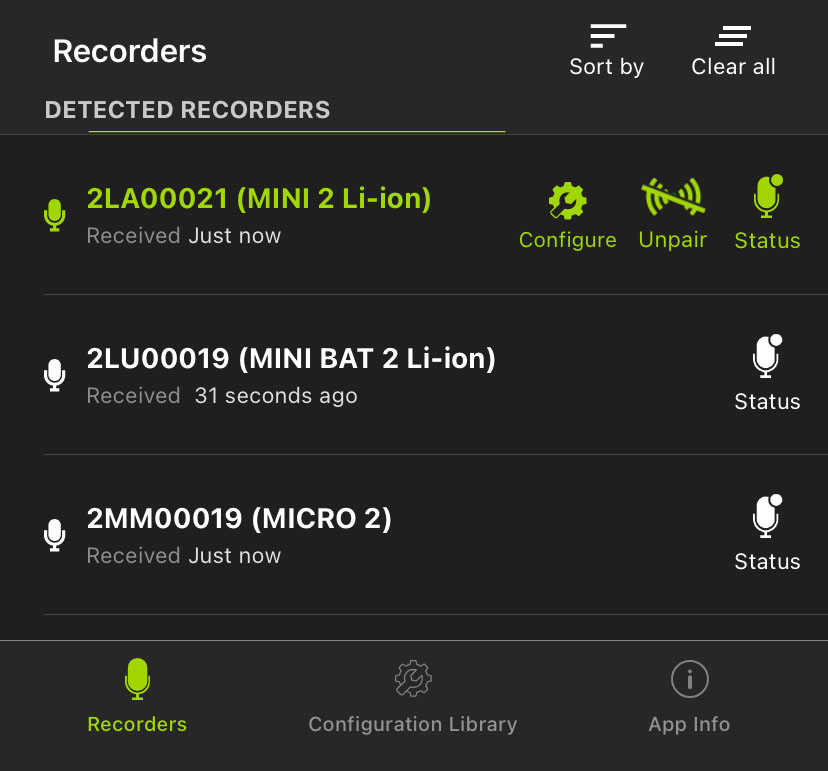
The Recorders screen lists each recorder within Bluetooth range and detected by the Song Meter Configurator app. Previously detected recorders that are out of Bluetooth range or powered off will remain in the list until removed.
The Recorders screen is also where you pair with a recorder in order to configure it. See Pair the Recorder with the Song Meter Configurator App for instructions on this procedure.
If a recorder is within range and powered on, but it does not show in the Recorders screen list, check whether the Send Bluetooth Beacons? utility is enabled for that recorder (see Send Bluetooth Beacons?).
Access the Recorders Screen
The Recorders screen is the first screen displayed when you open the Song Meter Configurator app. You can access the Recorders screen from the Configuration Library and App Info screens by tapping the Recorders icon in the navigation bar at the bottom of the screen.
Recorders Screen: Top Menu Bar
The top menu bar of the Recorders screen includes the following buttons, listed from left to right:
- Sort by
-
Tap this icon to open a Sort Recorders menu with options to sort the recorders by one of two options. The currently used sort option is indicated by an upwards or downwards arrow. To toggle the sorting between ascending and descending, tap Sort by, then tap the currently used sorting option once more.
The available sorting options are:
- By last time detected
-
Tap to sort entries in the Recorders list by how long ago each recorder's status was updated. When the sorting option is marked with an upwards arrow, recorders with more recently detected status updates are listed first.
- By recorder name
-
Tap to sort recorders by their RECORDER NAMES in alphabetical or reverse-alphabetical order.
See Configuration Editor Screen for instructions on editing the RECORDER NAME.
- Clear all
-
Tap this icon to clear all entries from the Recorders screen. Nearby recorders that are currently broadcasting Bluetooth beacons will repopulate the Recorders list within several seconds.
Detected Recorders List
The entries for unpaired recorders are represented by white text and icons, and they include the following information:
- RECORDER NAME
-
The default value of a recorder's name is its serial number, but this can be changed to a custom value (see Configuration Editor Screen).
- Received
-
This text lists when the Song Meter Configurator app last received a status update from the recorder. This text will read Received Just now for the first ten seconds after an update. After ten seconds, it will display a duration in seconds, minutes, hours, or days.
- Status
-
Tap this icon to open the Status screen for the recorder, which displays the information the app most recently received from the recorder. See Status Screen for a breakdown of all information included on the Status screen.
The entry for a paired recorder is represented by green text and icons. It includes the same information as unpaired recorder entries, plus two additional icons. The Song Meter Configurator can only be paired with one recorder at a time.
- Configure
-
Tap to open the Configuration Editor screen, where you can alter the settings of the paired recorder and perform many other functions. See Configuration Editor Screen for more information.
- Unpair
-
Tap to unpair the Song Meter Configurator app from the Song Meter Mini 2. You must unpair from the currently paired recorder before you can pair with another.
For instructions on pairing with a recorder, see Pair the Recorder with the Song Meter Configurator App.
Lower Navigation Bar
The navigation bar at the bottom of the Recorders screen shows icons for the Recorders, Configuration Library, and App Info screens. Recorders is highlighted in green to indicate the current screen. Tap on the Configuration Library or App Info icons to navigate to those respective screens.
See Configuration Library Screen and App Information Screen.