
Configuration Library Screen
The Configuration Library screen can be accessed by tapping the Configuration Library icon at the bottom center of the Recorders screen or App Info screen.
Configuration Library Interface
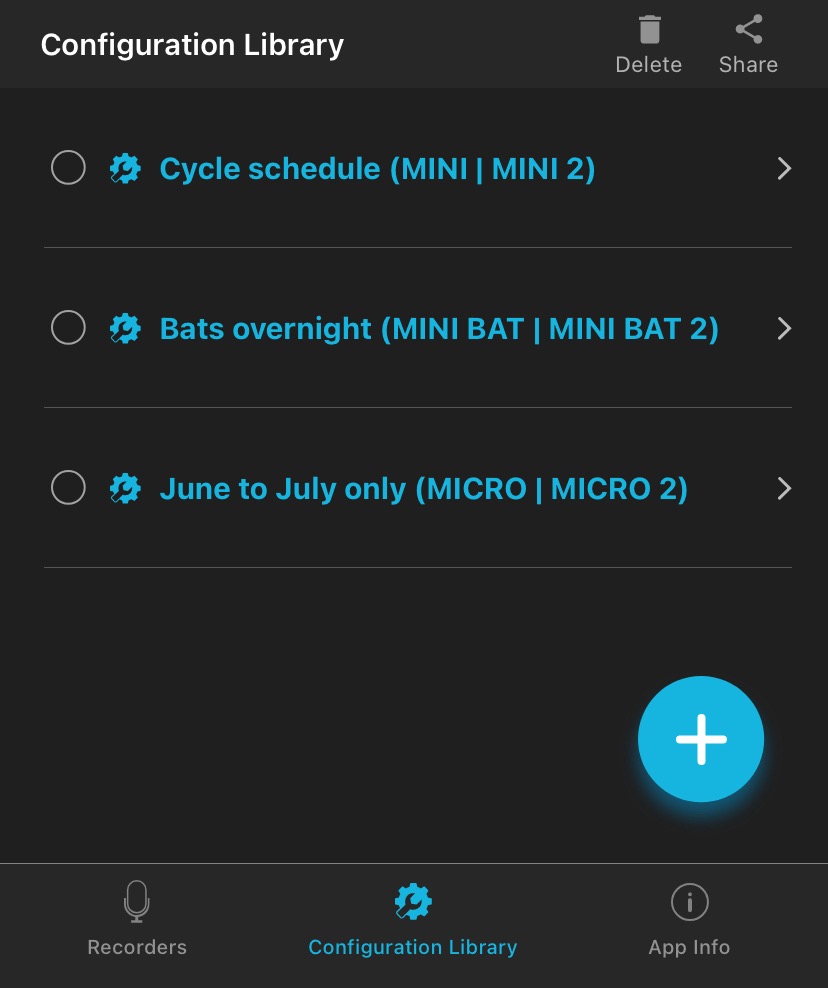
The top-most info bar on the Configuration Library screen includes two buttons:
- Delete
-
After selecting one or multiple configurations from the list, tap this button to delete them. See Delete a Saved Configuration File.
- Share
-
After selecting one or multiple configurations from the list, tap this button to share the configuration file using another app on your device. See Share a Saved Configuration File.
The entry for each configuration includes the following elements:
- Selection bubble
-
Tap this bubble, on the left side of each list entry, to select the configuration for deletion or sharing. You can select multiple configurations at once.
- Configuration name and model
-
This text displays the name for each configuration as well as the Song Meter models with which it can be used.
Tap on this text to edit the configuration. See Edit a Saved Configuration File
In the bottom-right corner of the Configuration Library window is one additional button:
- + (Add Configuration)
-
Tap this icon to create a new configuration from scratch. See Create a Configuration File in the Configuration Library Screen.
Below the interface for the Configuration Library itself are buttons for accessing the Recorders Screen and App Information Screen.
The Recorder Name and Send Bluetooth Beacons? settings cannot be set using a configuration file. To alter these settings, you must Configure a Paired Recorder Directly.