
Record a Transect
Procedure
- Pair the Song Meter Mini Bat 2 with the Song Meter Configurator app (see Pair the Recorder with the Song Meter Configurator App).
- Tap the Configure icon to open the Configuration Editor screen for the paired recorder.
-
Tap the Transect entry in the Configuration
Editor screen to open the Transect screen.
The current location of your mobile device is displayed in the Transect screen.
-
Tap the Start Transect button. The Song Meter Mini Bat 2 will begin monitoring.
If there is no SD card inserted in the recorder, or if the SD card is full, the Start Transect button will be inactive.
-
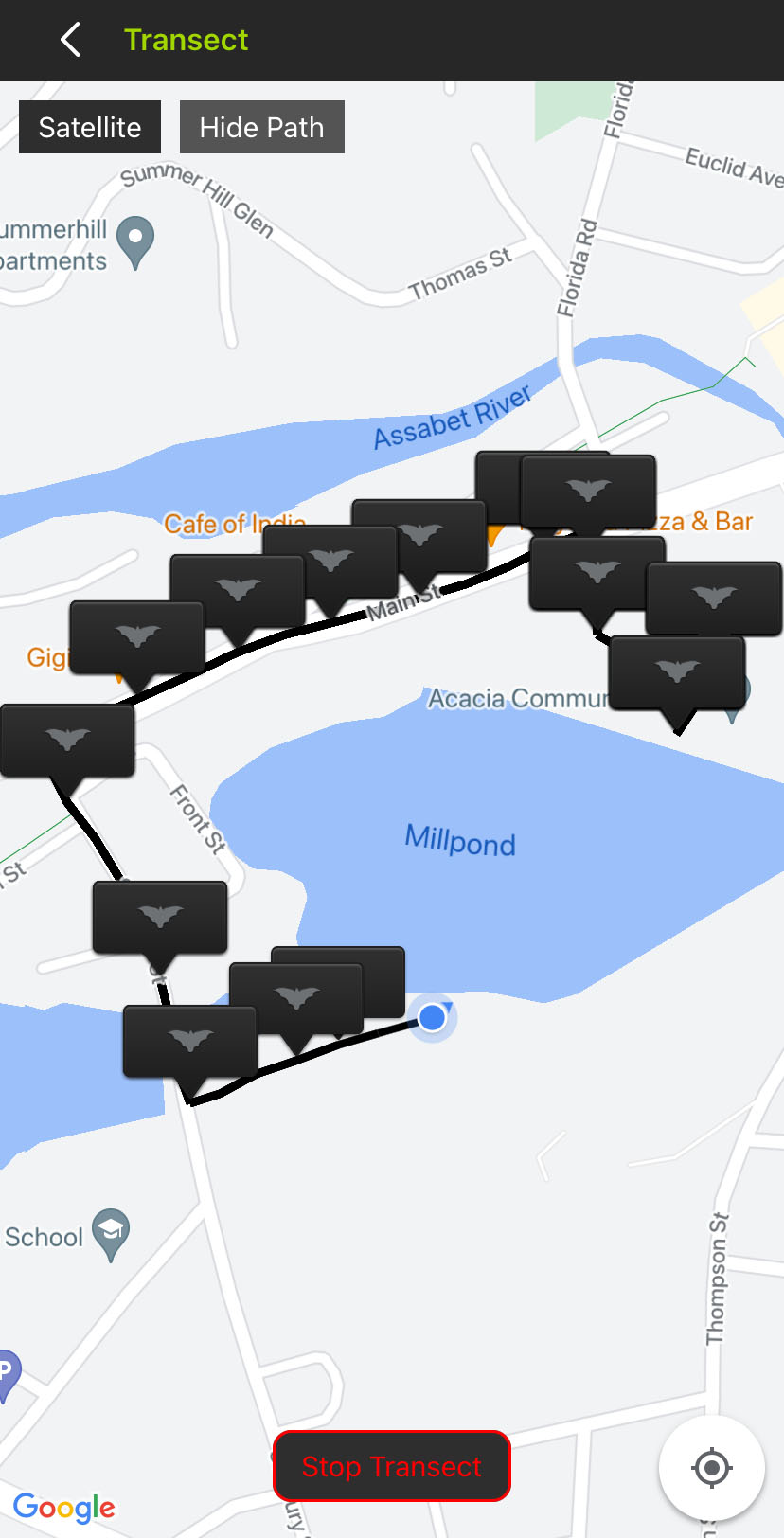
As the Song Meter Mini Bat 2 records audio files, the location of each
recording is marked by a black flag with a bat icon on the map.
The path of your movement is displayed in white or black, depending on the color theme of the map.
-
When you want to end your transect, tap the Stop Transect
button.
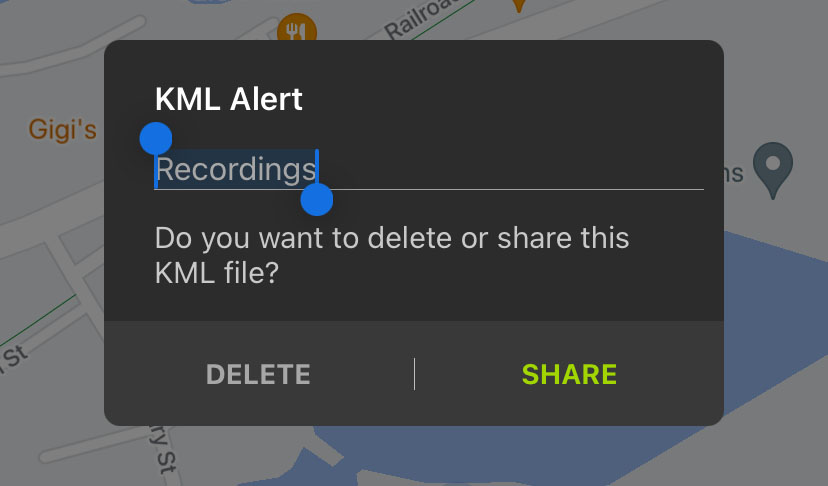
The Song Meter Mini Bat 2 will resume its normal recording schedule, and a KML Alert dialog box will appear.
-
To save the location data of your transect as a .kml file for
later use: