
Location & Time Zone Screen
The Song Meter Mini Bat 2 deployment location and time zone can be set in the Location & Time Zone screen, accessed from the Configuration Editor screen.
Location and time zone information are embedded in the metadata of files created by the Song Meter Mini Bat 2 recorder (see SD Card Contents).
The saved location settings must match the recorder's actual deployment location to within approximately 0.25 degrees if sunrise or sunset times are to be used in a recording schedule.
The time zone setting must match the time zone convention you want the recorder to follow. Note that in regions that practice daylight savings time, the time zone conventions are different for standard and daylight time.
Deployment location and time zone can be set automatically when the Song Meter Mini Bat 2 recorder is first paired with the Song Meter Configurator app (see Pair the Recorder with the Song Meter Configurator App).
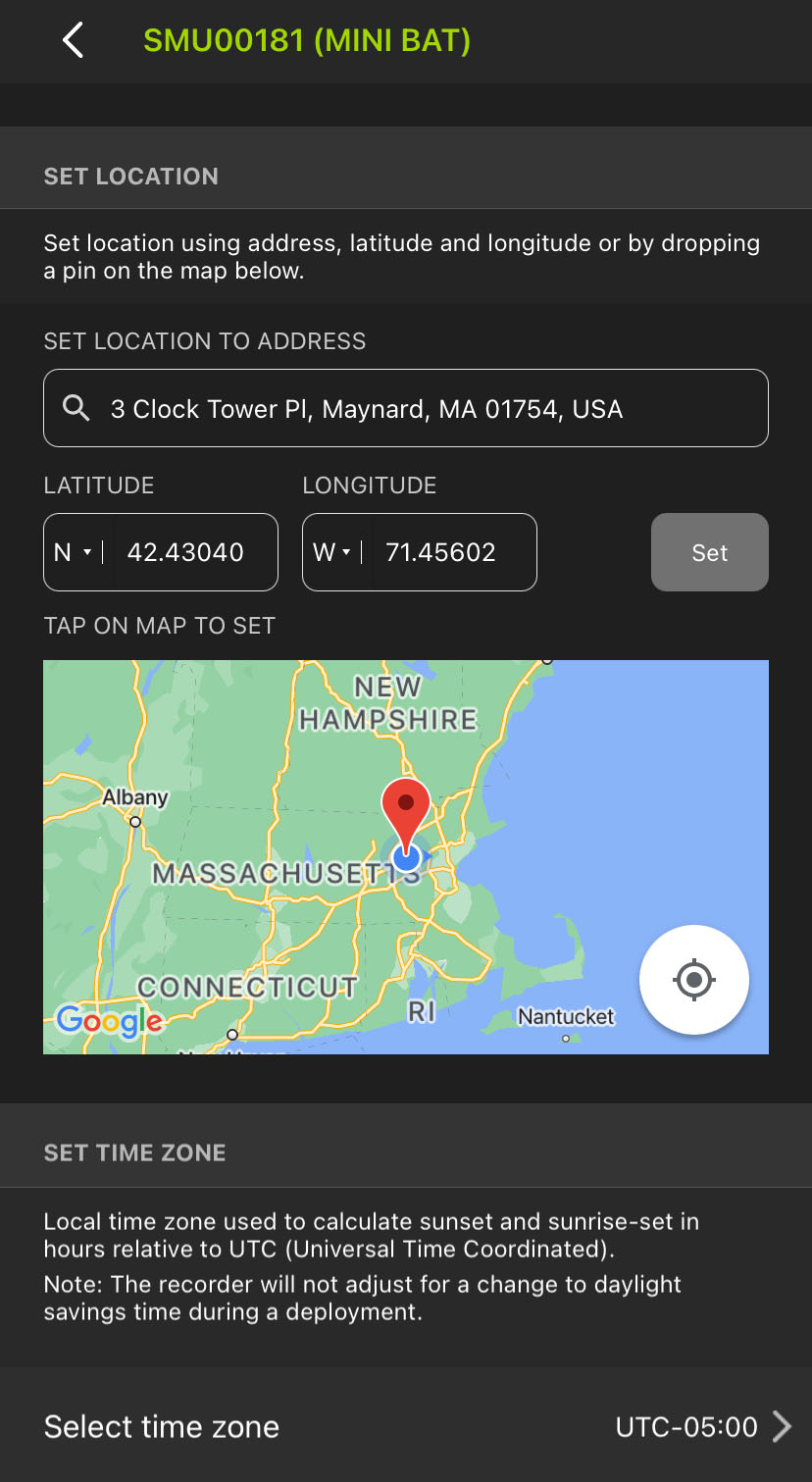
Enter and Exit the Location & Time Zone Screen
The Location & Time Zone screen can be accessed from the Configuration Editor either when configuring a paired recorder or when editing a configuration in the Configuration Library. In the Configuration Editor, under the SETTINGS heading, tap Location & time zone.
To exit the Location & Time Zone screen, tap the < (back) icon at the top-left corner of the screen.
Map
If the mobile device is connected to the Internet, or if the nearby area is saved in Google Maps™ as an offline map, this panel will display an interactive map. The location saved to the paired Song Meter Mini Bat 2 or to the configuration is indicated by a red pin, and the mobile device's current location is indicated by a blue dot. A light-blue halo around the blue dot indicates the level of precision for the mobile device's detected location.
Map data for specific regions can be saved to your mobile device for offline use using the Google Maps app. For full instructions, refer to this Google support article.
Many tablets that do not have cellular connectivity also lack a built-in GPS antenna. Without a GPS antenna, a tablet can detect its approximate location from nearby Wi-Fi routers, but this data is not very precise, and it is only available when Wi-Fi routers are nearby.
A tablet paired with a dedicated GPS unit like the Garmin® GLO™ 2 can access more precise location data.
The map on the Location & Time Zone screen is based on the Google Maps interface. Many gestures used for navigating the map mimic those used in the Google Maps app.
-
Touch and drag with one finger to pan across the map in any direction.
-
Double-tap with one finger to zoom in on the tapped location.
-
Pinch with two fingers to zoom in and out by spreading two fingers apart or bringing them together.
-
Tap once with one finger to save the tapped location as the deployment location, marked with a red pin.
-
Tap the Crosshairs icon to center the map view on your mobile device's location.