
Transect Interface
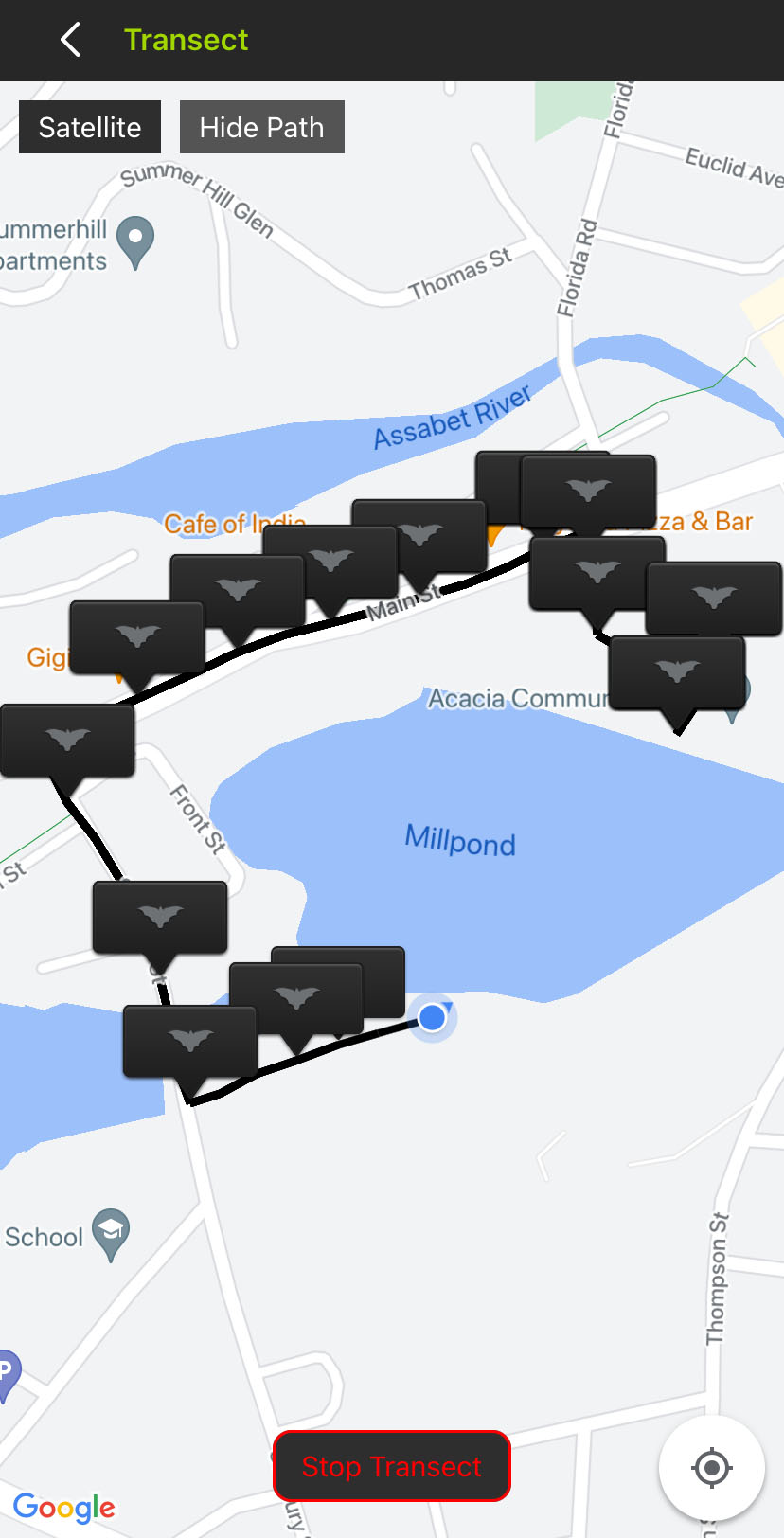
The Transect screen includes the following interface elements:
|
< Transect (back) icon |
Tap to exit the Transect interface and return to the Configuration Editor. An active transect will continue running in the background. |
|
Satellite / Map |
Tap to toggle the map interface between a simplified map view and one constructed from satellite imagery. |
|
Hide Path / Show Path |
Tap to hide or show the path representing the mobile device's location, updated every five seconds. The path is saved to the KML file at the end of the transect even if it is kept hidden in the Transect view. |
|
Start Transect / Stop Transect |
Tap to begin or end a transect. |
|
Crosshairs |
Tap to center the map view on the mobile device's current location. |
Map Touch Gestures
The Transect screen's map view is based on the Google Maps™ interface. It supports the same touch gestures as Google Maps for navigating the map, including:
-
Touch and drag with one finger to pan across the map in any direction.
-
Double-tap with one finger to zoom in on the tapped location.
-
Pinch with two fingers to zoom in and out by spreading two fingers apart or bringing them together.