
Utilities Menu
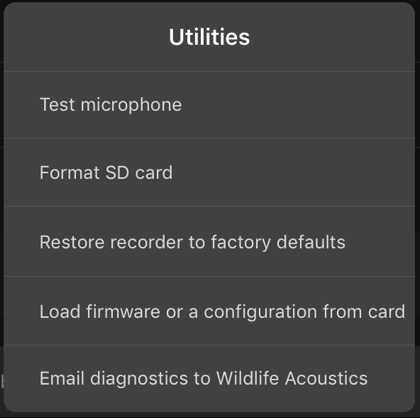
When configuring a paired Song Meter Micro 2, the Utilities menu provides easy access to several useful functions.
To access the Utilities menu, tap the Utilities icon at the top right of the Configuration Editor screen when configuring a paired recorder.
The Utilities menu brings up the following utilities:
- Test microphone
-
Tap to open an interface for testing the Song Meter Micro 2's microphones with a reference signal generator.
See Testing the Internal Microphone for detailed test instructions.
- Format SD card
-
Tap to format the Song Meter Micro 2's SD card, erasing all contents and resetting the card to an initialized state.
See Format the SD Card for instructions on multiple methods of formatting the SD card.
- Restore recorder to factory defaults
-
Tap to restore the Song Meter Micro 2's default settings.
See Restore Recorder to Factory Defaults for full instructions.
- Load firmware or a configuration from card
-
Tap to update the Song Meter Micro 2's firmware or its settings from a file on its SD card.
See Update the Recorder's Firmware for firmware update instructions.
See Configuration Files on the SD Card for details on working with configuration files on the SD card.
- Email diagnostics to Wildlife Acoustics
-
Tap to generate a new email, addressed to the Wildlife Acoustics Support team, with a diagnostics file exported from the Song Meter Micro 2.
See Export Diagnostics Files for more information and alternative ways to export diagnostics files.